CAST e.V.
Rheinstrasse 75
D-64295 Darmstadt
Germany
E-Mail: info cast-forum.de
Simone Zimmermann
Phone: +49 (0) 6151 869 230
E-Mail: simone.zimmermanncast-forum.de
The management is responsible for the content. Suggestions, information and requests can be sent to the management of CAST e.V. via the above address.
Prof. Dr. Andreas Heinemann
E-Mail: andreas.heinemanncast-forum.de
Public GnuPG/PGP key for andreas.heinemanncast-forum.de
Prof. Dr. Andreas Heinemann (Chairman)
E-Mail: andreas.heinemanncast-forum.de
Dr. Gerhard Schabhüser
E-Mail: gerhard.schabhuesercast-forum.de
Prof. Dr. Michael Waidner
E-Mail: michael.waidnercast-forum.de
Dr. Kim Nguyen
Prof. Dr. Marc Fischlin
CAST e.V.
Fraunhofer SIT
Rheinstrasse 75
64295 Darmstadt
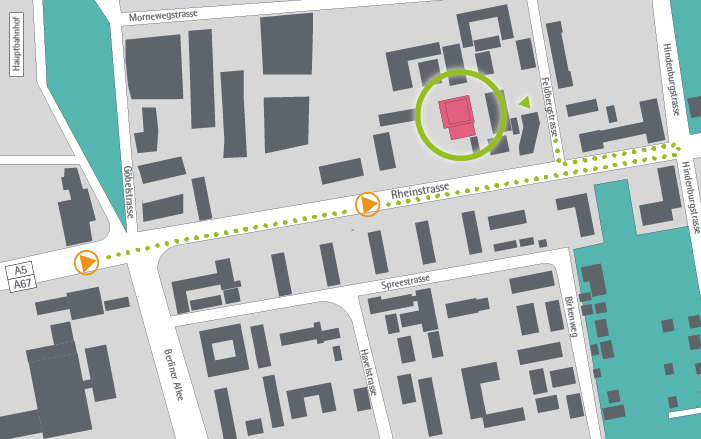
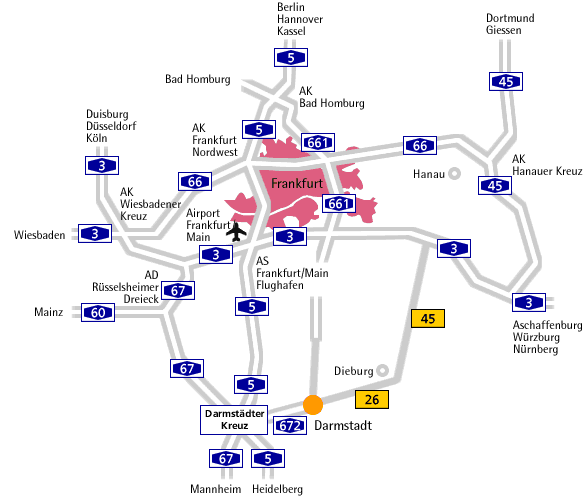
Autobahn junction Darmstadt (A5/A67), take the Darmstadt-Innenstadt exit and follow the road into the city. The institute's parking lot is right at the main entrance. Please follow the Rheinstrasse until Steubenplatz, then take a U-turn and follow the Rheinstrasse until the institute, which is to the right just after the Aral gas station.
From the Darmstadt main train station an approx. 10-minute walk along the Rheinstrasse.
Take bus F or H, or tram no. 1, 2, 4, 5 or 9 until bus/tram stop "Berliner Allee". From there it is an approx. 1 minute walk to the institute.
From the Frankfurt / Main airport with the Airliner (every half hour) from Terminal 1, bus stop no. 14, to Darmstadt main station (about 25 minutes, 7,40€ one-way). From there it is an approx. 10-minute walk along the Rheinstrasse. If a taxi is preferred, it is about 25 km (travel time approx. 20 minutes).
The Airliner provides a bus transfer every (half an) hour from bus stop 14 at Frankfurt airport to Darmstadt / Central Station. From there you take Bus F (direction "Oberwaldhaus") to bus stop "Alexanderstrasse / TU". Turn right into "Merckstrasse". After 50 meters you turn right again in "Erich-Ollenhauer-Promenade" which will lead you directly to our main entrance. For further details see map.
Time schedules for busses and trains van be found on the web pages of RMV.